flowchart LR
    A[Raw Source Data] --> B[Power Query Editor]
    B --> C[Header & Column Setup]
    B --> D[Type Detection & Assignment]
    B --> E[Row Operations]
    B --> F[Column Operations]
    B --> G[Data Shaping]
    B --> H[Query Combining]
    C & D & E & F & G & H --> I[Close & Apply]
    I --> J[Clean Data Model]
    classDef default fill:#003366,color:#ffffff,stroke:#ffcc00,stroke-width:3px,rx:10px,ry:10px;
5 Transformation & Cleaning
NoteWhy Clean Data Before Visualizing?
Raw data is rarely ready to visualize. Column headers may be unclear, data types may be wrong, duplicate records may inflate your numbers, and irrelevant rows may clutter your analysis. Power Query Editor is where you fix all of this, before a single visual is built. Clean data leads to accurate charts, trustworthy dashboards, and reports that stakeholders can rely on.
NoteWhere Transformation Happens
All cleaning and transformation in Power BI happens inside Power Query Editor. You reach it by clicking Transform Data after connecting to a source, or by clicking Transform Data in the Home ribbon at any time. Every step you apply is recorded in the Applied Steps panel on the right, forming a reproducible and editable pipeline that re-runs automatically on every data refresh.
[Insert screenshot of the Power Query Editor with the Applied Steps panel visible on the right side]
5.1 Getting Started with Power Query
5.1.1 The Applied Steps Panel
NoteYour Transformation History
Every action you take in Power Query Editor is saved as a named step in the Applied Steps panel. Steps run in order from top to bottom every time your data refreshes. You can click any step to preview the data at that exact point in the pipeline, rename steps for clarity, reorder them by dragging, or delete a step if it is no longer needed.
[Insert screenshot of the Applied Steps panel showing a full sequence of transformation steps such as Source, Promoted Headers, Changed Type, Filtered Rows, Replaced Value, Removed Duplicates, and Grouped Rows]
TipName Your Steps for Readability
Power BI gives steps generic names such as “Filtered Rows” or “Replaced Value1”. Right-click any step and select Rename to give it a descriptive name, for example “Remove Cancelled Orders” or “Standardise Region Names”. This makes your transformation pipeline easier to understand when you or a colleague revisits it later.
ImportantAlways End with Close & Apply
When all your transformation steps are in place, click Close & Apply in the Home ribbon of Power Query Editor. This executes all steps against the source data and loads the clean result into the Power BI data model. Your tables will then appear in the Data pane, ready for building visuals.
5.1.2 Data Profiling: Column Quality, Distribution, and Profile
NoteUnderstanding Your Data Before Transforming It
Before applying transformations, it is important to understand what your data actually contains. Power Query provides three data profiling tools, accessible from the View ribbon, that give you a visual summary of data quality and distribution across your columns. These tools are invaluable for spotting errors, nulls, and unexpected patterns before they reach your data model.
[Insert screenshot of the View ribbon with Column Quality, Column Distribution, and Column Profile checkboxes highlighted]
Column Quality
NoteWhat Column Quality Shows
Enabling Column Quality displays three percentage bars beneath each column header in the data preview:
- Valid — the percentage of rows with a well-formed, non-null value
- Error — the percentage of rows containing an error value
- Empty — the percentage of rows containing a null or blank value
[Insert screenshot of the Power Query Editor data preview with Column Quality enabled, showing Valid, Error, and Empty percentages under each column header]
At a glance, you can identify which columns have data quality problems. A column showing 12% Empty immediately flags a data completeness issue worth investigating before building visuals.
Column Distribution
NoteWhat Column Distribution Shows
Enabling Column Distribution displays a small histogram beneath each column header, showing how values are spread across the column. It also shows the count of Distinct Values (all unique entries, including duplicates counted once) and Unique Values (entries that appear exactly once).
[Insert screenshot of the Power Query Editor with Column Distribution enabled, showing histograms and distinct/unique value counts beneath column headers]
This is useful for spotting skewed distributions, unexpected outliers, or columns that look like a key field but contain duplicates.
Column Profile
NoteWhat Column Profile Shows
Column Profile provides a detailed statistical summary for a single selected column, shown in a panel beneath the data preview. It includes the value distribution chart, a count of distinct and unique values, min/max values, average (for numeric columns), and a table of the most frequent values with their occurrence counts.
To use Column Profile, enable it from the View ribbon and then click any column header to see its detailed profile.
[Insert screenshot of the Column Profile panel showing statistics, distribution chart, and value frequency table for a selected column]
ImportantColumn Profiling Is Based on the First 1,000 Rows by Default
By default, Power Query profiles only the first 1,000 rows of your dataset, which may not represent the full data. To profile the entire dataset, look at the bottom of the Power Query Editor window for the status bar text that says “Column profiling based on top 1000 rows” and click it to switch to entire dataset profiling. For large tables, this takes longer but gives accurate results.
5.2 First Contact Transformations
5.2.1 First Row as Headers and Headers as First Row
NoteSetting Up Your Column Headers Correctly
When Power BI imports data, it sometimes treats the actual column headers as the first row of data, labelling every column “Column1”, “Column2”, and so on. The Use First Row as Headers command fixes this immediately. Conversely, if you need to move your headers back into the data (for reshaping purposes), Use Headers as First Row reverses the operation.
These two commands are typically the very first steps you apply after connecting to a new source, before any other transformation.
NoteHow to Use First Row as Headers
- In Power Query Editor, go to the Home ribbon
- Click Use First Row as Headers
- Power BI promotes the first data row into column header names and adds a Promoted Headers step
To reverse this, go to Transform → Use Headers as First Row, which demotes the column names back into the first row of data.
[Insert screenshot of the Home ribbon with “Use First Row as Headers” highlighted, and a before/after preview of the column headers changing]
TipApply This Before Any Other Step
Always confirm your headers are correct before applying any other transformation. If you change a data type or filter rows before promoting headers, you may end up applying those steps to the wrong columns. Header setup should be step one in your Applied Steps panel.
5.2.2 Changing Data Types
NoteWhat Are Data Types and Why Do They Matter?
Every column in your dataset has a data type that tells Power BI whether it contains text, whole numbers, decimal numbers, dates, or true/false values. Getting data types right is one of the most important steps in transformation. Visuals, filters, and calculations all behave differently depending on the type assigned to a column. A date stored as text cannot be used in a time series chart, and a number stored as text cannot be summed in a measure.
NoteHow to Change a Data Type
- Click the type icon on the left side of the column header (it shows a symbol such as
ABCfor text,1.2for decimal, or a calendar icon for dates) - A dropdown appears with all available types. Select the correct one
- A Changed Type step is added to Applied Steps
[Insert screenshot of the column header type icon dropdown showing available data types]
Alternatively, select a column, go to the Transform ribbon, and use the Data Type dropdown.
Detect Data Type
NoteLetting Power BI Detect Types Automatically
Detect Data Type scans the values in each selected column and assigns the most appropriate data type automatically. This is useful after appending queries or importing data where types were not set, saving time when dealing with many columns at once.
NoteHow to Detect Data Types
- Select the columns you want Power BI to analyse (or select all columns by clicking the top-left corner of the grid)
- Go to the Transform ribbon and click Detect Data Type
- Power BI scans the data and assigns types, adding a Changed Type step
[Insert screenshot of the Transform ribbon with the Detect Data Type button highlighted]
WarningAlways Review Auto-Detected Types
Detect Data Type is a useful shortcut, but it is not always accurate. It scans a sample of rows rather than the entire column, so edge cases in the data can lead to incorrect assignments. After running detection, review each column’s type icon and correct any that are wrong before closing the editor.
5.3 Column and Row Operations
5.3.1 Column Operations
Choose Columns
NoteKeeping Only the Columns You Need
Large datasets often contain dozens of columns that are irrelevant to your report. Choose Columns lets you specify exactly which columns to keep and discards everything else. This is one of the most effective ways to reduce model size and improve refresh performance.
NoteHow to Use Choose Columns
- Go to the Home ribbon and click Choose Columns
- A dialog lists all available columns with checkboxes
- Uncheck any column you do not need, then click OK
- Power BI retains only the selected columns and adds a Choose Columns step
[Insert screenshot of the Choose Columns dialog with a list of checkboxes for each column]
TipChoose Columns vs. Remove Columns
Both achieve the same result, but from opposite directions. Choose Columns is better when you want to keep a small subset out of many columns, because you check only what you want. Remove Columns is better when you want to drop just one or two columns from an otherwise clean table.
Remove Columns
NoteDropping Unwanted Columns
Remove Columns deletes selected columns from your query. It is a direct, precise operation, ideal for removing one or a few columns without opening a full selection dialog.
NoteHow to Remove Columns
- In the data preview, click the column header you want to remove (hold Ctrl to select multiple columns)
- Right-click the selected header and choose Remove Columns, or go to the Home ribbon and click Remove Columns
- The column disappears and a Removed Columns step is added
[Insert screenshot of a right-click context menu on a column header with “Remove Columns” highlighted]
Rename
NoteGiving Columns Meaningful Names
Column names from source systems are often technical, abbreviated, or inconsistent (“cust_id”, “Amt”, “dt_created”). Renaming columns in Power Query makes your data model readable and ensures that field names in your visuals and tooltips are clear to report consumers.
NoteHow to Rename a Column
- Double-click the column header in the data preview
- Type the new name and press Enter
- A Renamed Columns step is added to Applied Steps
Alternatively, right-click the column header and select Rename.
[Insert screenshot of a column header being renamed inline in the Power Query Editor]
Move
NoteReordering Columns
The order of columns in Power Query affects how they appear in the data model and in table visuals. The Move command lets you reposition a column to the left, to the right, to the very beginning, or to the very end of the table.
NoteHow to Move a Column
- Click the column header to select it
- Right-click and choose Move, then select one of the four options: Left, Right, To Beginning, or To End
- A Reordered Columns step is added
[Insert screenshot of the right-click Move submenu showing the four move options]
You can also drag column headers directly in the preview grid to reorder them.
Sort
NoteSorting Your Data
Sorting in Power Query arranges rows in ascending or descending order based on one or more columns. While report visuals have their own sort controls, sorting in Power Query is useful when the order of rows matters for a specific transformation step that follows, such as a fill operation or a rank calculation.
NoteHow to Sort a Column
- Click the dropdown arrow on the column header you want to sort by
- Select Sort Ascending or Sort Descending
- A Sorted Rows step is added
To sort by multiple columns, apply the sorts in reverse priority order (sort by the least important column first, then the most important).
[Insert screenshot of the column header dropdown showing Sort Ascending and Sort Descending options]
5.3.2 Row Operations
Keep Rows
NoteKeeping a Specific Subset of Rows
Keep Rows is used when you want to retain only a defined portion of your dataset, such as the top N rows for sampling, or a specific range of rows. It is distinct from filtering, which keeps rows based on a column value condition.
NoteHow to Keep Rows
- Go to the Home ribbon and click Keep Rows
- Choose from the available options: Keep Top Rows, Keep Bottom Rows, Keep Range of Rows, or Keep Duplicates
- Enter the number of rows or the range as prompted, then click OK
[Insert screenshot of the Keep Rows dropdown menu with its options visible]
Remove Rows
NoteRemoving Specific Rows
Remove Rows is the counterpart to Keep Rows. It lets you drop rows from the top or bottom of the table, remove blank rows, remove duplicate rows, or remove rows containing errors. Each option targets a different data quality problem.
NoteHow to Remove Rows
- Go to the Home ribbon and click Remove Rows
- Select the appropriate option from the dropdown:
- Remove Top Rows — removes a fixed number of rows from the top (useful when source files have title or metadata rows above the actual data)
- Remove Bottom Rows — removes a fixed number of rows from the bottom (useful for trailing summary or footer rows)
- Remove Blank Rows — removes rows where all column values are empty
- Remove Duplicates — keeps the first occurrence of each duplicate row
- Remove Errors — removes rows that contain an error value in any column
[Insert screenshot of the Remove Rows dropdown showing all available options]
WarningRemoving Rows Is Permanent in the Model
Rows removed in Power Query do not exist anywhere in the data model. Before removing duplicates or error rows, inspect a sample of the affected rows in the preview to confirm the removal is intentional. A row that looks like a duplicate may carry a meaningful difference in a column that is not immediately visible.
Filter Rows
NoteFiltering Rows by Column Value
Filtering rows means instructing Power BI to keep only the records that meet a specific condition and discard the rest. This reduces dataset size, improves performance, and keeps your visuals focused on relevant data. Filters applied in Power Query are permanent and re-applied on every refresh.
NoteHow to Filter Rows
- Click the dropdown arrow on the right side of any column header
- A filter menu appears. Uncheck values you want to exclude, or use Text Filters, Number Filters, or Date Filters for condition-based filtering
- Click OK to apply. A Filtered Rows step is added to Applied Steps
[Insert screenshot of the column header filter dropdown showing filter options and checkboxes]
WarningPower Query Filters Are Not the Same as Report Filters
Filters applied in Power Query Editor permanently remove rows from the dataset. Filters applied in report visuals or the filter pane only hide rows from view while the data remains in the model. Use Power Query filtering when you are certain that certain data should never appear in the report at all.
5.4 Cleaning and Refining Data
5.4.1 Replacing Values
NoteStandardizing Inconsistent Entries
Real-world data often contains inconsistent entries such as abbreviations, typos, legacy codes, or mixed capitalizations that all refer to the same thing. Replace Values lets you standardize these entries so your visuals group and count data correctly. For example, “N/A”, “n/a”, and “Not Available” in the same column should all become one consistent label.
NoteHow to Replace Values
- Select the column you want to clean
- Go to the Transform ribbon and click Replace Values
- In the dialog, enter the Value to Find and the Replace With value
- Click OK. A Replaced Value step is added
[Insert screenshot of the Replace Values dialog in Power Query Editor]
You can also right-click any cell value in the data preview and select Replace Values to pre-fill the dialog with that value automatically.
5.4.2 Fill
NotePropagating Values Through Empty Cells
The Fill operation copies a value downward or upward to fill null cells below or above it. This is especially common with data exported from Excel, where merged cells or hierarchical layouts leave blank cells that belong to the same group as the last populated cell.
NoteHow to Use Fill
- Select the column containing the null cells you want to fill
- Go to the Transform ribbon and click Fill
- Choose Down to copy each value into the null cells below it, or Up to fill in the opposite direction
- A Filled Down (or Filled Up) step is added
[Insert screenshot showing a column with null cells before Fill Down, and the same column fully populated after the operation]
TipWhen to Use Fill Down
Fill Down is most useful when your source data uses a “grouped” layout, where a category label appears only once at the top of a group of rows rather than repeating in every row. After Fill Down, every row carries its category value, making filtering and grouping in Power BI work correctly.
5.4.3 Format
NoteCleaning Text Column Values
The Format commands in the Transform ribbon apply text-level cleaning operations to string columns. These are quick, non-destructive ways to fix capitalisation inconsistencies and remove stray whitespace that would otherwise cause grouping errors in visuals.
NoteAvailable Format Options
Select a text column, go to the Transform ribbon, and click Format to access these options:
- Lowercase — converts all characters to lowercase
- UPPERCASE — converts all characters to uppercase
- Capitalize Each Word — applies title case to the column values
- Trim — removes leading and trailing spaces from each value
- Clean — removes non-printable characters that are invisible but can break text matching
- Add Prefix / Add Suffix — prepends or appends a fixed string to every value in the column
[Insert screenshot of the Format dropdown in the Transform ribbon showing all available options]
TipAlways Trim Text Columns Used for Joining
When you plan to merge two queries on a text column (such as a customer name or product code), apply Trim to that column in both queries first. A trailing space in one table and no trailing space in the other will cause the join to fail silently, leaving unmatched rows that appear as nulls in the result.
5.4.4 Split Column
NoteBreaking One Column into Multiple Columns
Split Column divides a single text column into two or more separate columns based on a delimiter character, a fixed number of characters, or a positional pattern. It is commonly used when source data packs multiple pieces of information into one field, such as a full name in a single column that should be separated into first name and last name, or a date and time combined in a single string.
NoteHow to Split a Column
- Select the column you want to split
- Go to the Home or Transform ribbon and click Split Column
- Choose the splitting method from the submenu:
- By Delimiter — splits wherever a specific character appears (comma, space, slash, semicolon, or a custom character)
- By Number of Characters — splits after a fixed number of characters from the left or right
- By Positions — splits at specific character position numbers you define
- By Lowercase to Uppercase — splits where a lowercase letter is immediately followed by an uppercase letter (useful for camelCase fields)
- By Uppercase to Lowercase — the reverse of the above
- By Digit to Non-Digit — splits where a number transitions to a letter, or vice versa
- Configure the options in the dialog and click OK. Power BI creates new columns named with a numeric suffix, for example “FullName.1” and “FullName.2”
- Rename the resulting columns to meaningful names
[Insert screenshot of the Split Column submenu and the “By Delimiter” dialog showing delimiter options and split position settings]
TipSplitting by Delimiter: Left, Right, or Each Occurrence
When splitting by delimiter, Power BI asks where to split: at the leftmost delimiter (splits only on the first occurrence), the rightmost delimiter (splits only on the last occurrence), or each occurrence (splits at every instance, creating as many columns as there are delimiters). For a column like “City, State, Country”, choosing each occurrence produces three clean columns.
WarningInconsistent Values Will Produce Nulls
If some rows have two delimiter occurrences and others have three, the split will create the maximum number of columns and fill the missing positions with null. Review the column distribution before splitting to understand how many segments your data actually contains.
5.4.5 Extract
NotePulling Specific Parts Out of a Text Column
Extract derives a new value from a text column by pulling out a defined portion of each cell’s content. Unlike Split Column, which divides a column into multiple new columns, Extract produces a single result that replaces or supplements the original column. It is useful for isolating codes, prefixes, suffixes, or substrings that are embedded within longer text values.
NoteAvailable Extract Options
Select a text column, go to the Transform ribbon (or Add Column to preserve the original), and click Extract to access the following options:
- Length — returns the number of characters in each cell value
- First Characters — extracts a defined number of characters from the start of each value
- Last Characters — extracts a defined number of characters from the end of each value
- Range — extracts characters from a specific starting position for a defined number of characters
- Text Before Delimiter — extracts all text to the left of a specified delimiter character
- Text After Delimiter — extracts all text to the right of a specified delimiter character
- Text Between Delimiters — extracts the text found between two specified delimiter characters
[Insert screenshot of the Extract submenu in the Transform ribbon showing all available options]
TipUse “Add Column” Version to Keep the Original
When extracting from a column, use the Add Column ribbon’s Extract option rather than the Transform ribbon’s version. The Add Column version creates a new column alongside the original, so you retain both the source text and the extracted value. The Transform version replaces the original column in place.
5.5 Working with Dates
5.5.1 Date Operations
NoteExtracting Parts of a Date
Once a column is correctly typed as Date or Date/Time, Power Query unlocks a full set of date extraction commands. These let you derive new columns for year, month, quarter, week number, day name, and more, which are essential for time-based visuals such as line charts and bar charts grouped by month or quarter.
NoteHow to Use Date Commands
- Select a column with a Date or Date/Time data type
- Go to the Transform or Add Column ribbon and click Date
- Choose the extraction you need from the submenu. Common options include:
- Year — extracts the four-digit year
- Month — extracts the month number (1 to 12) or month name
- Quarter — extracts the quarter number (1 to 4)
- Day — extracts the day number within the month
- Day of Week — extracts the weekday name or number
- Age — calculates the difference between the date value and today
[Insert screenshot of the Date submenu in the Add Column ribbon showing all available date extraction options]
TipUse “Add Column” Instead of “Transform” for Date Parts
When extracting date parts, use the Add Column ribbon rather than the Transform ribbon. The Add Column version creates a new column alongside the original, preserving the source date. The Transform version replaces the original column with the extracted value, which means you lose the full date.
5.6 Reshaping and Summarizing
5.6.1 Group By
NoteSummarizing Data at a Higher Level
Group By aggregates your data by one or more columns, producing a summarized table. It is the Power Query equivalent of a SQL GROUP BY statement. Use it when your source data is at a granular level (individual transactions, line items, log entries) and you need a rolled-up summary (totals by region, counts by category, averages by month).
NoteHow to Use Group By
- Go to the Home ribbon and click Group By
- In the dialog, select the column or columns to group by (the “dimensions”)
- Define one or more aggregation operations. For each, give the new column a name, choose an operation (Sum, Count, Average, Min, Max, Count Distinct), and select the column to aggregate
- Click OK. A Grouped Rows step is added and the table collapses to the summary level
[Insert screenshot of the Group By dialog showing grouping columns and aggregation settings]
TipGroup By in Power Query vs. Measures in DAX
Both Group By and DAX measures can produce aggregated values, but they serve different purposes. Group By in Power Query creates a permanently summarized table in the data model, appropriate when you always want the rolled-up view and the detailed rows are not needed. DAX measures aggregate dynamically at report time, responding to slicers and filters. For most reporting scenarios, keep the detailed data in the model and use DAX measures for aggregation.
5.6.2 Pivot Column and Unpivot Columns
NoteReshaping Data Between Wide and Tall Formats
Data often arrives in a shape that does not suit Power BI’s visualization engine. Pivot Column transforms a tall (narrow) table into a wide table by spreading unique values from one column into separate columns. Unpivot Columns does the reverse, collapsing multiple columns into a single attribute/value pair. Understanding when to use each is fundamental to data modelling in Power BI.
flowchart LR
    subgraph Tall ["Tall Format (Unpivoted)"]
        A["Month | Product | Sales\nJan | A | 100\nJan | B | 200\nFeb | A | 150\nFeb | B | 250"]
    end
    subgraph Wide ["Wide Format (Pivoted)"]
        B["Month | Product A | Product B\nJan | 100 | 200\nFeb | 150 | 250"]
    end
    A -- "Pivot on Product" --> B
    B -- "Unpivot Columns" --> A
    classDef default fill:#003366,color:#ffffff,stroke:#ffcc00,stroke-width:3px,rx:10px,ry:10px;
Pivot Column
NoteHow to Pivot a Column
Use Pivot Column when your data has a column containing category names that should become separate columns, each holding an aggregated value:
- Select the column whose unique values will become new column headers
- Go to the Transform ribbon and click Pivot Column
- In the dialog, choose the Values Column (the column whose values will fill the new columns) and the aggregation to apply (Sum, Count, Average, etc.)
- Click OK. The categories become column headers and the table widens
[Insert screenshot of the Pivot Column dialog showing the Values Column and aggregation options]
Unpivot Columns
NoteHow to Unpivot Columns
Use Unpivot Columns when your data has months, years, or categories spread across multiple column headers and you need them in a single column for correct filtering and charting:
- Select the columns you want to collapse (the attribute columns)
- Go to the Transform ribbon and click Unpivot Columns. Alternatively, right-click the selected headers and choose Unpivot Columns
- Power BI creates two new columns named Attribute (containing the original column names) and Value (containing the corresponding values). Rename these appropriately
For tables with many columns, it is often easier to select the columns you want to keep fixed, then choose Unpivot Other Columns so that everything else is collapsed.
[Insert screenshot showing a wide table before unpivoting and the resulting tall table after, with Attribute and Value columns]
5.6.3 Transpose
NoteFlipping Rows and Columns
Transpose rotates your entire table so that rows become columns and columns become rows. It is useful when source data arrives in a layout where the intended column headers run down the first column rather than across the first row, which sometimes happens with exported reports or survey tools.
NoteHow to Transpose a Table
- Go to the Transform ribbon and click Transpose
- Power BI rotates the table immediately. What were rows are now columns, and what were columns are now rows
- After transposing, use Use First Row as Headers if the new first row contains your intended column names
[Insert screenshot of a table before and after Transpose, showing the row/column flip with a before state on the left and after state on the right]
TipTranspose Works Best on Small, Structured Tables
Transpose is most reliable on compact, consistently structured tables such as configuration tables, summary exports, or metadata sheets. Transposing large transactional tables rarely produces a useful result and can create hundreds of columns. For wide-to-tall reshaping of large tables, Unpivot Columns is the more appropriate tool.
5.6.4 Reverse Rows
NoteFlipping the Row Order
Reverse Rows reorders all rows in the table so that the last row becomes the first and the first row becomes the last. It is a simple operation used in specific scenarios where the natural sort order of the source data is the opposite of what you need for a subsequent transformation step, such as a Fill Down that should propagate from the bottom of a group rather than the top.
NoteHow to Reverse Rows
- Go to the Transform ribbon and click Reverse Rows
- The table row order is immediately flipped
- A Reversed Rows step is added to Applied Steps
[Insert screenshot of the Transform ribbon with the Reverse Rows button highlighted]
5.6.5 Count Rows
NoteGetting a Row Count from a Query
Count Rows returns the total number of rows in the current query as a single numeric value, transforming the entire table into a scalar number. This is different from the row count shown in the status bar of Power Query Editor, which is informational only. Count Rows is used when you need the row count as an actual value to reference in another query or parameter.
NoteHow to Count Rows
- Go to the Transform ribbon and click Count Rows
- The query immediately collapses to a single number representing the total row count
- This value can be referenced by name in other queries or used to build dynamic logic
[Insert screenshot of the Transform ribbon with Count Rows highlighted, and the resulting single number shown in the query preview]
TipCount Rows Is Often Used with Reference
A common pattern is to Reference your main data query into a new query, then apply Count Rows to the reference. This gives you a live row count that updates on every refresh without modifying the original query. You can then use this count in a measure or display it on a dashboard as a data freshness indicator.
5.7 Combining Queries
5.7.1 Reference and Duplicate
NoteCreating Derived Queries from an Existing Query
Both Reference and Duplicate create a new query based on an existing one, but they work differently and serve different purposes. Understanding the distinction prevents accidental data quality issues and unnecessary reloading of source data.
Duplicate
NoteWhat Duplicate Does
Duplicate creates an independent copy of a query, including all its applied steps. The duplicate query re-reads the data from the original source independently. Changes to the original query do not affect the duplicate, and vice versa.
Example: You have a query called Sales that imports from a CSV file. You duplicate it to create Sales Archived, apply a filter for dates before 2022 to the duplicate, and keep the original for current data. Both queries read from the same source file independently.
[Insert screenshot of the right-click context menu on a query in the Queries pane showing “Duplicate” option]
Reference
NoteWhat Reference Does
Reference creates a new query that starts from the current output of an existing query rather than from the original source. It does not repeat the source steps. Instead, the referenced query picks up from where the source query left off and adds its own transformation steps on top.
Example: You have a query called Orders that connects to a database, removes columns, and sets data types. You create a Reference from it called Orders High Value, then add a filter step that keeps only orders above £10,000. The Orders High Value query does not re-read the database. It receives the already-cleaned output of Orders and simply filters it further.
[Insert screenshot of the right-click context menu on a query showing “Reference” option, and the resulting new query appearing in the Queries pane]
TipWhen to Use Each
Use Duplicate when you need two completely independent transformations of the same source data and do not mind the source being queried twice. Use Reference when you want to branch off a cleaned base query into multiple specialized views, avoiding redundant transformation work and keeping your pipeline efficient.
WarningReference Creates a Dependency
Because a referenced query depends on its source query, deleting or renaming the source query will break the reference. In the Queries pane, referenced queries are visually linked to their source. Keep this dependency in mind when reorganizing your query structure.
5.7.2 Convert to List
NoteTurning a Column into a List
Convert to List transforms a single column in a query into a Power Query list object. A list is an ordered sequence of values that can be used as a parameter in other Power Query steps, such as filtering another query to only include values present in the list, or passing a dynamic set of values into a function.
NoteHow to Convert a Column to a List
- Select the single column you want to convert
- Right-click the column header and choose Drill Down, or go to Transform → Convert to List
- The query panel now shows a list instead of a table. This list can be referenced by name in other queries
[Insert screenshot showing a single-column table being converted to a list in the query pane]
TipA Practical Use for Convert to List
Suppose you maintain a reference table of approved product codes that should be included in reports. Convert that column to a list, then use Table.SelectRows or a filter step in your main sales query that references the list. Every time the approved list is updated in the source, the filter in your main query updates automatically on refresh.
5.7.3 Appending Queries
NoteStacking Tables on Top of Each Other
Append Queries stacks two or more tables with the same column structure vertically, combining their rows into a single table. It is the Power Query equivalent of a SQL UNION. Use it when the same type of data is spread across multiple files or tables and needs to be consolidated into one.
NoteHow to Append Queries
- Open one of the queries you want to combine
- Go to the Home ribbon and click Append Queries
- Choose Two tables (for two sources) or Three or more tables (for multiple sources)
- Select the tables to append and click OK
- Power BI stacks the rows and aligns columns by name
[Insert screenshot of the Append Queries dialog with multiple tables selected in the “Tables to append” list]
For appending to work correctly, the column names across all tables must match exactly. If a column exists in one table but not another, Power BI fills the missing values with null.
WarningAppend Requires Consistent Column Names
If your monthly sales files use slightly different column names such as “Sale Amount” in one file and “SaleAmount” in another, appending will create two separate columns instead of combining them into one. Standardize column names across all source files before appending, or rename the columns in each query using a Rename step first.
5.7.4 Merging Queries
NoteCombining Tables Side by Side
Merge Queries joins two tables based on a matching column (or set of columns), similar to a JOIN in SQL. The result adds columns from the second table into the first, for rows that match on the specified key. Power BI supports six join kinds, each producing a different set of rows in the output.
NoteHow to Merge Two Queries
- Open the query you want to add columns to (the “left” table)
- Go to the Home ribbon and click Merge Queries
- In the dialog, select the second table from the dropdown (the “right” table)
- Click the matching column in the left table, then click the corresponding column in the right table to define the join key
- Select the Join Kind (explained below)
- Click OK. A new column appears containing the merged table as a nested object
- Click the expand icon on the new column header and select which columns from the right table to bring in
[Insert screenshot of the Merge Queries dialog showing two tables, matching columns selected, and the Join Kind dropdown]
Join Kinds
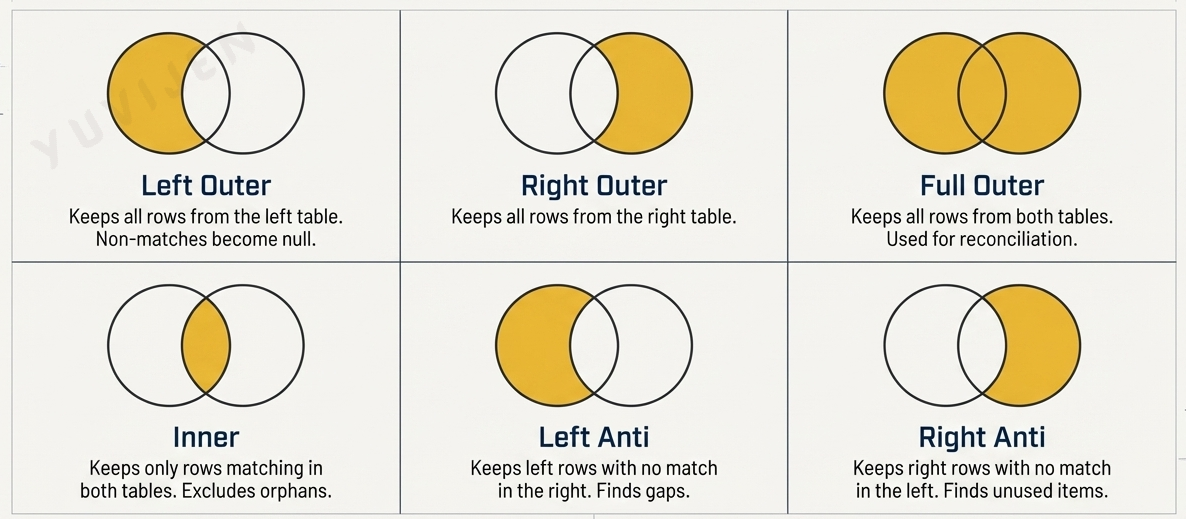
NoteLeft Outer Join
A Left Outer join keeps all rows from the left table and brings in matching data from the right table. Where no match exists in the right table, the new columns are filled with null.
Example: Your left table has Orders 1, 2, and 3. Your right table has customer details for Customer A and Customer B only. Customer C has no entry in the right table. The result includes all three orders: Orders 1 and 2 receive the customer details from the right table, and Order 3 gets null in the customer detail columns.
When to use it: This is the most commonly used join in Power BI. Use it when you want to enrich your main dataset with lookup information and you want to preserve every row in the main dataset, even those without a match.
NoteRight Outer Join
A Right Outer join keeps all rows from the right table and brings in matching data from the left table. Where no match exists in the left table, those row values come through as null.
Example: Using the same tables, the result includes all customers from the right table. Customers A and B receive their corresponding order data. Customer D, who has no orders in the left table, appears in the result with null in the order columns.
When to use it: Use Right Outer when the right table is your primary dataset and the left table is the supplementary one. In practice, most analysts simply swap the table positions and use a Left Outer join instead, as it is more intuitive to reason about.
NoteFull Outer Join
A Full Outer join keeps all rows from both tables, regardless of whether a match exists. Rows that match are combined. Rows that exist in only one table appear with null values for the columns from the other table.
Example: The result includes Orders 1, 2, and 3 from the left table and Customer D from the right table. Orders 1 and 2 have full customer details. Order 3 has null for customer details. Customer D has null for order details, because no order in the left table references Customer D.
When to use it: Use Full Outer when you need a complete picture of both datasets and you want to surface unmatched rows in both directions. This is useful for reconciliation reports, where identifying missing entries in either table is part of the analysis.
NoteInner Join
An Inner join keeps only the rows that have a match in both tables. Any row from either table that does not find a corresponding match is excluded entirely from the result.
Example: Orders 1 and 2 match Customers A and B respectively and are included in the result. Order 3 references Customer C, who does not exist in the right table, so Order 3 is excluded. Customer D has no matching order, so Customer D is also excluded.
When to use it: Use Inner when you only want rows that are fully represented in both tables. This is appropriate when unmatched rows represent invalid or incomplete data that should not appear in your report.
NoteLeft Anti Join
A Left Anti join keeps only the rows from the left table that have no match in the right table. It is the inverse of an Inner join for the left side.
Example: Only Order 3 appears in the result, because it references Customer C, who has no entry in the right table. Orders 1 and 2, which do have matching customers, are excluded.
When to use it: Use Left Anti to find gaps or orphaned records. A classic use case is identifying orders that have no corresponding customer record, products that have never been ordered, or employees not assigned to any department.
NoteRight Anti Join
A Right Anti join keeps only the rows from the right table that have no match in the left table. It is the mirror of Left Anti.
Example: Only Customer D appears in the result, because Customer D has no orders in the left table. Customers A and B, who have matching orders, are excluded.
When to use it: Use Right Anti to find entries in a reference or lookup table that are never referenced by the main dataset. For example, finding product codes that exist in a product catalogue but have never appeared in any sales transaction.
TipA Quick Reference for Join Kinds
| Join Kind | Rows Kept |
|---|---|
| Left Outer | All rows from the left table |
| Right Outer | All rows from the right table |
| Full Outer | All rows from both tables |
| Inner | Only rows matching in both tables |
| Left Anti | Left rows with no match in the right |
| Right Anti | Right rows with no match in the left |
5.8 Advanced Transformations
5.8.1 Parse
NoteInterpreting Structured Text as a Data Object
Parse interprets the content of a text column as a structured data format and converts it into an expandable object that Power Query can work with. The two supported formats are XML and JSON. This is used when a column contains serialized structured data, such as an API response stored as a JSON string in a database column, or configuration values stored as XML in a flat file.
NoteHow to Use Parse
- Select the text column containing XML or JSON content
- Go to the Transform ribbon and click Parse
- Choose JSON or XML from the submenu
- Power BI converts the text values into structured Record or List objects, shown with an expand icon in the column
- Click the expand icon on the column header to select which fields to extract into their own columns
[Insert screenshot of a column containing JSON strings before parsing, and the same column showing expandable Record objects after parsing, with the expand icon visible]
WarningParse Fails if the Text Is Not Valid JSON or XML
If any cell in the column contains malformed JSON or XML, Power BI will return an error for that row. Before parsing, use Column Quality from the View ribbon to check for errors after the Parse step, and handle error rows using Remove Errors or Replace Errors as appropriate.
5.8.2 Manage Parameters
NoteMaking Your Queries Dynamic with Parameters
Parameters in Power Query are named, typed values that can be referenced inside queries to make them dynamic and reusable. Instead of hardcoding a file path, a date, a server name, or a filter value directly into a query step, you store that value in a parameter and reference the parameter by name. When the value needs to change, you update it in one place and every query that references it updates automatically.
Parameters are especially powerful for building reports that need to switch between environments (development and production databases), accommodate different date ranges on demand, or be customized for different users or regions without modifying the underlying query logic.
flowchart LR
    A[New Parameter\nName, Type, Value] --> B[Parameter Object]
    B --> C[Referenced in\nQuery Filter]
    B --> D[Referenced in\nFile Path]
    B --> E[Referenced in\nServer Name]
    C & D & E --> F[Dynamic Query\nUpdates on Parameter Change]
    classDef default fill:#003366,color:#ffffff,stroke:#ffcc00,stroke-width:3px,rx:10px,ry:10px;
Creating a New Parameter
NoteHow to Create a Parameter
- In Power Query Editor, go to the Home ribbon and click Manage Parameters
- In the dialog, click New to create a parameter
- Fill in the following fields:
- Name — a descriptive identifier, such as “StartDate”, “RegionFilter”, or “ServerName”
- Description — an optional note explaining what the parameter controls
- Required — check this if the parameter must always have a value
- Type — the data type of the parameter: Text, Decimal Number, Whole Number, Date, Date/Time, Duration, Logical, Binary, or Any
- Suggested Values — choose between “Any value” (free input), “List of values” (a dropdown of allowed options), or “Query” (populates the list dynamically from another query)
- Current Value — the value the parameter holds right now
- Click OK to save the parameter
[Insert screenshot of the Manage Parameters dialog showing a new parameter being created with Name, Type, and Current Value fields visible]
Using a Parameter in a Query
NoteReferencing a Parameter in a Filter Step
Once created, parameters appear in the Queries pane alongside your data queries. To use a parameter inside a filter or transformation step:
- Apply a filter to a column as you normally would (click the column header dropdown and choose a filter condition)
- In the filter value field, instead of typing a fixed value, open the dropdown and select Parameter and then choose your parameter by name
- The filter step now reads the parameter’s current value at refresh time rather than a hardcoded value
[Insert screenshot of the filter dialog showing the parameter selection option in the value field]
NoteEditing and Managing Existing Parameters
To view, edit, or delete existing parameters:
- Go to the Home ribbon and click Manage Parameters
- The dialog lists all parameters in the current file. Select any parameter to edit its name, type, allowed values, or current value
- Click OK to apply changes. All queries referencing the parameter will immediately reflect the updated value
[Insert screenshot of the Manage Parameters dialog showing a list of existing parameters with their types and current values]
TipParameters Enable “What-If” Scenarios
Beyond dynamic data connections, parameters are the foundation of What-If analysis in Power BI. You can create a numeric parameter, expose it as a slicer in a report, and reference its value in DAX measures to let users interactively adjust assumptions, such as a discount rate, a growth factor, or a target threshold, and see the impact on visuals in real time.
5.8.3 R Script
NoteRunning R Code Inside Power Query
Power Query allows you to execute R scripts as a transformation step, giving you access to R’s statistical libraries and data manipulation packages directly within the Power BI transformation pipeline. This is useful for advanced statistical transformations, custom text processing, or operations that would be complex to build using Power Query’s native interface alone.
R must be installed on your machine, and the R installation path must be configured in Power BI Desktop Options under R scripting.
NoteHow to Use an R Script Transformation
- In Power Query Editor, go to the Transform ribbon and click Run R Script
- A script editor dialog opens. The current query’s data is available as a data frame named
dataset - Write your R code to transform the data. The script must return a data frame as its final output
- Click OK. Power BI executes the script and displays the result as a new table in the query
[Insert screenshot of the Run R Script dialog showing a sample R script with the dataset data frame being manipulated]
Example: The script below adds a new column that calculates a 7-day rolling average of a sales column.
WarningR Scripts Disable Query Folding
When an R script step is added to a query connected to a relational database, query folding stops at that point. All data up to the R step must be retrieved into memory before the script can run. Apply as many filter and column reduction steps as possible before the R script step to minimize the volume of data the script processes.
5.8.4 Python Script
NoteRunning Python Code Inside Power Query
Similar to R, Power Query supports Python scripts as transformation steps, enabling access to Python’s data science ecosystem, including pandas, NumPy, and scikit-learn, directly within the transformation pipeline. Python must be installed on your machine and configured in Power BI Desktop Options under Python scripting.
NoteHow to Use a Python Script Transformation
- In Power Query Editor, go to the Transform ribbon and click Run Python Script
- A script editor dialog opens. The current query’s data is available as a pandas DataFrame named
dataset - Write your Python code. The script must output a pandas DataFrame as its result. If multiple DataFrames are created, Power BI presents them as separate tables to choose from
- Click OK to execute the script
[Insert screenshot of the Run Python Script dialog showing a Python script using pandas to transform the dataset DataFrame]
Example: The script below standardizes a text column by stripping whitespace and converting values to title case.
import pandas as pd
dataset['CustomerName'] = dataset['CustomerName'].str.strip().str.title()
dataset
TipChoosing Between R and Python
Both R and Python produce the same outcome inside Power Query, so the choice comes down to familiarity and the libraries available for your specific task. Python’s pandas library is particularly well suited for data reshaping and cleaning tasks, while R’s tidyverse and zoo packages excel at statistical transformations and time series operations. If your team already uses one language in other tools, standardize on that language for consistency.
WarningScript Steps Are Not Portable Without the Runtime
Reports containing R or Python script steps require the corresponding runtime to be installed on every machine where the report is refreshed. When publishing to the Power BI service and scheduling a refresh, a data gateway with R or Python installed and configured is required. Without it, the refresh will fail at the script step.
Summary
| Concept | Description |
|---|---|
| Editor Mechanics | |
| Power Query Editor | Power Query workspace where shaping happens visually |
| Applied Steps | Recorded transformation list replayed at every refresh |
| Data Type Changes | Setting columns to text, number, date, or boolean explicitly |
| Transformation Patterns | |
| Splitting and Merging Columns | Splitting one column by delimiter or merging multiple into one |
| Removing Errors | Replacing or filtering out rows that produced source errors |
| Conditional Columns | If-then-else logic that creates new categorical columns |
| Group By | Aggregating rows by category to summarised results |
| Pivot and Unpivot | Reshaping wide tables to long, or long to wide, for analysis |